
An erratic, unpredictable mouse scroll jump is disruptive in CS2, particularly when attempting to bunny hop or switch weapons during a critical moment. One incorrect scroll input can cause you to select a knife instead of a rifle. This issue is not a CS2 bug; it almost always originates from a software conflict, hardware failure, or electrical signal noise.
Identifying which of these three is the cause is the first step toward a permanent solution.
Diagnosing the Cause of Mouse Scroll Jumps
The problem is rarely caused by the game itself. The issue lies somewhere between your mouse, its drivers, and your operating system. A systematic process of elimination is required to isolate the problem by examining the three main failure points.
Software conflicts are often the simplest to resolve. This can include a corrupted mouse driver or peripheral software like Razer Synapse or Logitech G Hub competing for control. Even a Windows setting like "Scroll inactive windows when I’m hovering over them" can create conflicts by causing multiple programs to process the same scroll input.
Hardware Degradation and Signal Noise
If software has been ruled out, the hardware is the next area to investigate. The scroll wheel's movement is tracked by a component called an encoder. Over thousands of hours of use, this encoder can become clogged with dust and debris or simply wear out.
A dirty encoder is the most frequent cause of an erratic scroll wheel. When dust accumulates, it obstructs the sensor from reading rotations correctly. This manifests as the scroll jumping in the wrong direction or registering multiple "ticks" from a single scroll action.
In more severe cases, the problem is electrical signal noise, often referred to as a "debounce" issue. The internal contacts become so worn that they send inconsistent, stuttering signals to the PC, which interprets them as chaotic scrolling.
This diagram illustrates the diagnostic process, showing the logical flow from software checks to hardware investigation.
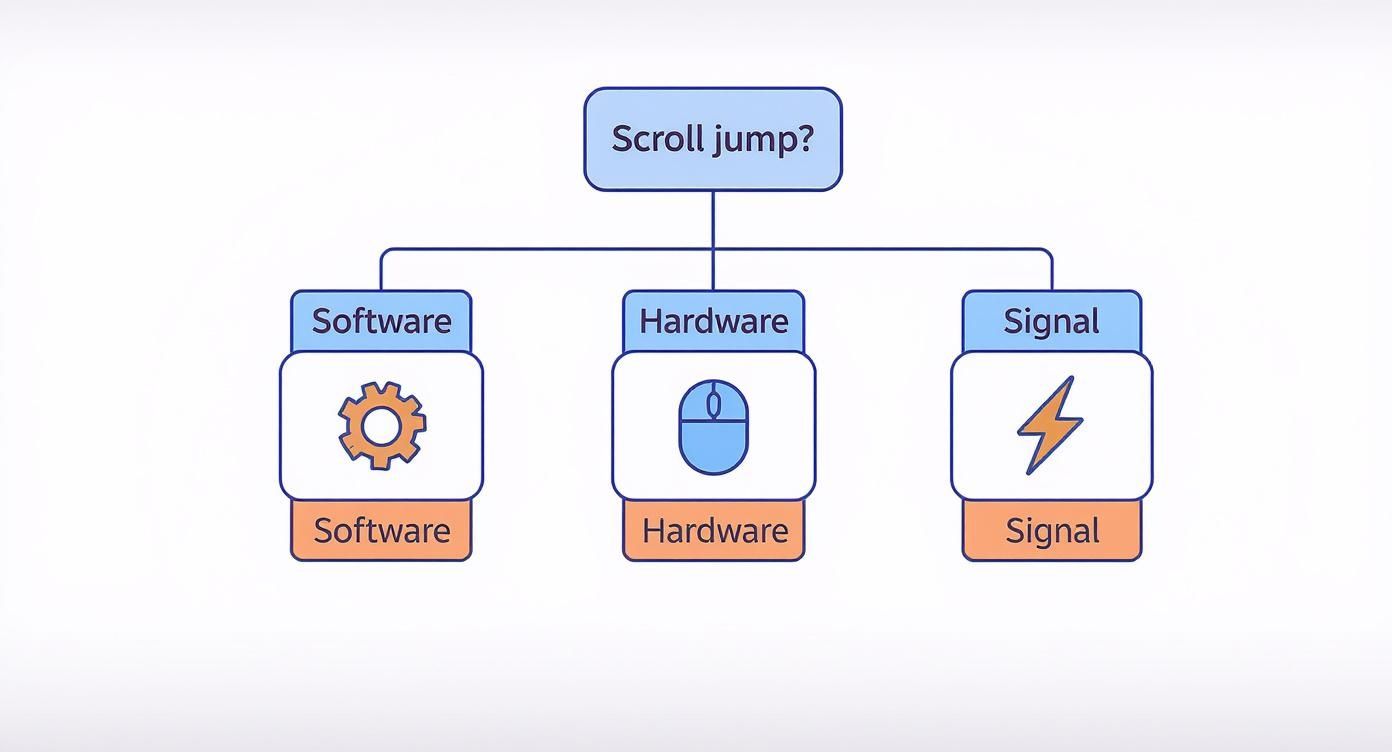
Always begin with software diagnostics, as it is the most common and easily resolved source of the issue.
Common Causes of Mouse Scroll Jumps
| Cause Category | Specific Issue | Common Symptom |
|---|---|---|
| Software | Corrupted or outdated mouse drivers | Unpredictable scrolling that may resolve after a restart |
| Software | Conflicting peripheral software (Razer, Logitech) | Jumps and stutters when the software is running |
| Software | Windows "inactive scroll" setting | Scroll wheel behaves erratically when hovering over different windows |
| Hardware | Dirty or dusty scroll wheel encoder | Scrolling in the opposite direction; ghost scrolls |
| Hardware | Worn-out mechanical encoder | Inconsistent scrolling; missed inputs or double inputs |
| Signal Noise | Debounce issues from worn internal contacts | Severe, stuttering jumps that are impossible to control |
This table helps narrow down the problem's source based on observed symptoms during in-game and desktop use.
The scroll wheel was engineered with discrete "jumps," or detents, to provide users with tactile feedback. Heavy users can scroll an estimated 26 feet in a single day, making that physical click essential.
System and Driver Solutions for Scroll Issues
Before assuming a hardware fault, address potential software causes. An erratic scroll wheel often results from a software conflict rather than hardware failure. Adjusting system settings or performing a clean driver reinstall can frequently resolve the mouse scroll jumps without requiring any tools.
Begin with the simplest fixes and proceed to more complex solutions.

The first step is to examine core Windows mouse settings. These settings govern how the PC interprets signals from the scroll wheel, and misconfigurations are a common cause of issues.
Adjusting Windows Mouse Settings
Navigate to Windows Settings > Bluetooth & devices > Mouse. Two settings in this section are known to cause scrolling anomalies.
- Lines to scroll at a time: This setting can become corrupted and cause erratic jumps. Move the slider down to 1. If this results in smooth (though slow) scrolling, the problem is identified. Gradually increase the value to find a functional setting.
- Scroll inactive windows when I hover over them: This feature can cause issues, especially with multiple monitors or applications. A minor cursor drift can cause Windows to send scroll commands to the incorrect window, making it seem as though the active application is ignoring scroll inputs. Disable this feature as a critical troubleshooting step.
If adjusting these settings does not resolve the issue, the problem may lie with device drivers or conflicting software.
Managing Drivers and Peripheral Software
Outdated or corrupt drivers are another primary source of scroll wheel problems. Also, software from brands like Logitech, Razer, or Corsair can sometimes conflict with default Windows settings.
A clean driver reinstall is the most effective method to rule out this cause. This action forces Windows to use a fresh, uncorrupted set of instructions for the mouse.
Follow these steps:
- Right-click the Start button and open Device Manager.
- Expand the "Mice and other pointing devices" section.
- Right-click your mouse and select "Uninstall device."
- In the confirmation pop-up, check the box for "Attempt to remove the driver for this device" before clicking Uninstall.
- Unplug the mouse. Wait 10 seconds, then plug it back in. Windows will automatically install the necessary base driver.
Important Note: After the driver reinstalls, do not launch peripheral software like Logitech G Hub or Razer Synapse. Test the scroll wheel first with only the default Windows driver. If the jumping is resolved, the issue is located within the third-party software's settings.
This structured process isolates the problem by methodically eliminating potential software conflicts. If the scroll wheel still malfunctions after these steps, a physical hardware investigation is required.
Hardware Diagnostics and Physical Repair
When all software and driver fixes are exhausted, the problem is almost certainly physical. Hardware components wear out, especially under heavy usage. For CS2 players who use the scroll wheel for bunny hopping, it is often one of the first parts to degrade.
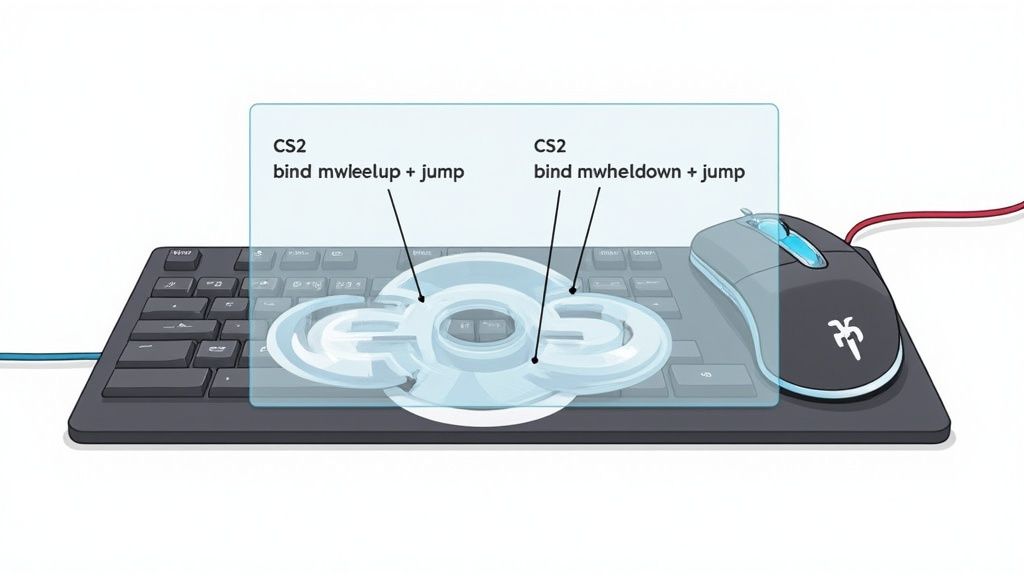
The most common culprit behind mouse scroll jumps is a dirty scroll wheel encoder. This sensor translates physical scrolling into a digital signal. Over time, dust, hair, and other debris accumulate inside the mouse and interfere with the sensor, causing it to send erratic signals.
Safely Cleaning the Scroll Wheel Encoder
The initial step is to clean the mouse with compressed air. This method is highly effective and does not require disassembly, which preserves the manufacturer's warranty.
- Disconnect Your Mouse: Unplug it from the PC. If wireless, turn it off and remove the battery.
- Angle the Nozzle: Hold the compressed air can upright and attach the thin straw nozzle for precise application.
- Target the Gaps: Aim the nozzle directly into the small crevices on both sides of the scroll wheel.
- Use Short Bursts: Apply several short, controlled blasts of air, each lasting 1-2 seconds. While spraying, rotate the wheel to circulate air and dislodge debris.
Safety Warning: Do not shake the can or tilt it excessively. This can spray liquid propellant, which can damage the sensitive electronics inside the mouse. Allow the mouse to sit for 5-10 minutes before reconnecting it.
This technique resolves a significant number of hardware-related scroll issues. If the problem persists after cleaning, the encoder itself is likely worn out.
Identifying Terminal Encoder Wear
A mechanical encoder has a finite operational lifespan. The internal contacts that register each "tick" of the wheel eventually degrade from friction. The distinct scroll jumps are by design; most wheels feature 24 detents corresponding to specific scroll actions. You can explore the technical specifications of mouse wheel mechanics to understand how these physical notches translate to digital inputs.
The signs of a failing encoder include:
- Persistent Reverse Scrolling: The page jumps up when you scroll down, even after cleaning.
- Skipped Inputs: The scroll action feels unresponsive, and some wheel movements fail to register.
- Double Inputs: A single "click" of the wheel scrolls two or three times farther than intended.
If these symptoms are present, the encoder has reached the end of its functional life. A new mouse is the most practical solution.
Optimizing CS2 Binds to Bypass Scroll Errors
When a mouse's scroll wheel encoder fails, the resulting unpredictable scroll jumps are detrimental in-game. For CS2 players using the scroll wheel for movement or weapon switching, this hardware glitch can render an otherwise functional mouse unusable.
A powerful in-game workaround exists that bypasses the faulty hardware. Using the developer console to configure stronger key binds can ignore the phantom scrolls and incorrect inputs from a failing encoder. This is an immediate, no-cost solution.
Creating Reliable Jump Binds
Movement is the most common function affected by an erratic scroll wheel. Bunny hopping becomes inconsistent and frustrating. You can restore reliable movement by creating a solid input system that binds the jump command to both scroll directions.
These commands instruct the game to interpret any scroll input, whether up or down, as a jump. This redundancy negates the buggy signals from a faulty encoder.
bind mwheelup +jumpbind mwheeldown +jump
Enter these two commands in the developer console. This assigns the jump action to both scroll movements, a standard configuration for competitive players who need to chain jumps by rolling the wheel. For a complete list of commands, see our guide on CS2 console commands.
Making Your Binds Permanent with an Autoexec
Binds entered in the console are temporary and reset when the game closes. To make them permanent, add them to your autoexec.cfg file. This configuration file automatically executes custom commands every time the game launches.
An
autoexec.cfgis a simple text file located in your CS2 config folder. Any command placed within it is applied at launch, ensuring your custom settings are always active.
To create it, navigate to your CS2 config folder, create a new text file named autoexec.cfg, and paste the bind commands into it. This step solidifies the workaround, providing consistent performance.
Advanced Troubleshooting for Persistent Glitches
If cleaning the mouse, reinstalling drivers, and trying different USB ports fail to resolve the mouse scroll jumps, the problem is likely deeper. The issue may stem from the hardware's electrical signals, causing phantom inputs and reverse scrolls that basic troubleshooting cannot fix.
At this point, the likely cause is a hardware issue known as scroll wheel debounce failure. As the mechanical components inside the scroll wheel wear down, they generate electrical "noise." The PC misinterprets this noise, converting a single physical "tick" of the wheel into multiple inputs or a scroll in the opposite direction.
Third-Party Software and Obscure Conflicts
Some users attempt to resolve debounce issues with third-party filtering software. These tools intercept the mouse signals to smooth out erratic inputs, but this approach carries risks.
Warning: Exercise extreme caution with unverified third-party hardware management tools. They can introduce security vulnerabilities or cause system instability.
If debounce is not the cause, the issue may be a less common software conflict or environmental problem that mimics hardware failure.
Consider these less common culprits:
- Weak USB Power: An unstable power supply from a USB port can cause erratic peripheral behavior. Connect the mouse directly to a motherboard I/O panel port, not a front-panel port or USB hub.
- Remote Desktop Clashes: Applications like TeamViewer or Windows Remote Desktop can interfere with local mouse inputs. Ensure these programs are completely shut down before playing CS2.
- Software Interpretation Errors: The hardware may be functional, but software interprets the scroll events incorrectly. An application might process a tiny scroll as a maximum-value input. This shows how software logic affects scroll behavior in ways that appear to be hardware bugs.
If the problem persists and only affects in-game binds, console commands can offer a workaround. For a full guide on control customization, see our article on Counter-Strike codes.
After exhausting these advanced options, it is highly probable the mouse has reached the end of its operational life.
Common Questions About Mouse Scroll Jumps
Here are answers to frequently asked questions regarding erratic scroll wheel behavior.
Why Does My Mouse Scroll Up When I Scroll Down?
This is a classic symptom of a dirty or failing mouse wheel encoder. The internal sensor that reads the wheel's rotation is either obstructed by debris or has worn out, causing it to misinterpret signals and send input in the wrong direction. This issue typically appears after 1-2 years of heavy use. A cleaning with compressed air may solve it, but if the component is worn, the hardware has failed.
Can a Software Update Cause Mouse Scrolling Issues?
Yes. A faulty driver, a problematic Windows update, or a patch to the mouse's companion software can introduce scrolling problems. If the issue began immediately after an update, the first step is to roll back the driver via Device Manager. Also, check the manufacturer's website for an updated driver, as hotfixes are often released to address conflicts.
Which Scroll Direction Is Better for CS2 Jump Binds?
Neither mwheelup nor mwheeldown offers a competitive advantage for jump binds in CS2. The choice is based on personal preference and muscle memory. Most competitive players bind +jump to both scroll directions in their autoexec.cfg file. This dual-bind setup creates redundancy, allowing for continuous jumping by rolling the wheel back and forth.
Pro Tip: Binding jump to both scroll directions also acts as a practical workaround for a failing mouse wheel. If one direction becomes unreliable, the other remains functional in-game.
What Is the Cost to Repair a Mouse Scroll Wheel?
Professional repair for a standard gaming mouse is generally not cost-effective. Repair shops typically charge between $30-$60 for parts and labor, which often exceeds the price of a new mid-range mouse. If the problem is only dust, a can of compressed air for under $10 is the most economical solution. However, if the encoder is failing and the mouse is out of warranty, replacement is the most practical option.
How Does Disabling "Scroll Inactive Windows" Help?
The "Scroll inactive windows when I hover over them" setting in Windows can cause input conflicts, especially in multi-monitor setups. If your cursor drifts over another window while you are scrolling in-game, the OS may send the input to the inactive window. This creates the appearance that the game is ignoring or misinterpreting your scroll command. Disabling this feature ensures all scroll inputs are directed exclusively to the active window, eliminating a common source of erratic behavior. For more in-game setting optimizations, see our guide on CS2 viewmodel commands.