The CS2 console is a text-based command interface that provides direct control over game settings. It is essential for players who want to modify configurations, optimize performance, and set up custom scenarios unavailable in the standard options menu. Proper setup is the first step for fine-tuning gameplay.
How to Enable and Access the CS2 Console
Activating the developer console is a one-time setup within the game settings. Once enabled, it can be opened with a single keypress. Many experienced players also add a launch option in Steam to ensure the console is active immediately upon starting the game, which provides instant access to the full suite of CS2 console commands.

Enabling the Console In-Game
The most direct method to enable the console is through the CS2 main menu.
- Launch CS2 and select the Settings cogwheel icon in the top-left corner.
- Navigate to the "Game" tab.
- Locate the option labeled "Enable Developer Console (~)" and set it to "Yes".
The console can now be opened or closed by pressing the tilde key (~), which is typically located below the Esc key.
The CS2 console differs significantly from its CS:GO predecessor. Valve reclassified many commands as 'development-only' or 'defensive' to prevent cheating. According to community-tracked data, approximately 60% of former CS:GO commands were restricted, leaving about 40% accessible to players. For a complete overview, consult this updated CS2 command list.
Using Launch Options for Automatic Access
Using a Steam launch option causes the console to open automatically every time CS2 starts. This method is efficient for traders and advanced users who frequently enter commands.
To set launch options: Right-click CS2 in the Steam Library, select "Properties," and under the "General" tab, enter
-consoleinto the "Launch Options" text box.
With this setting, the console will be immediately available upon launching the game.
Essential Commands for FPS and Performance
In CS2, a stable frame rate is a competitive necessity. Optimizing performance provides a tangible advantage by minimizing input lag and ensuring smooth gameplay. These console commands offer direct control over the game's rendering engine for precise adjustments.

The primary goal is to achieve a high, consistent FPS that exceeds the monitor's refresh rate. This configuration prevents screen tearing and stuttering that can disrupt aim during critical engagements. These are the core commands to achieve that stability.
Monitoring and Capping Your FPS
Before making adjustments, establish a baseline performance reading. This is the first step in performance tuning.
cl_showfps [0/1]- Function: This command activates a basic on-screen FPS counter. Setting it to
1displays a live FPS value in the top-left corner, showing the immediate impact of any changes. - Default: 0 (Off)
- Function: This command activates a basic on-screen FPS counter. Setting it to
Once the current FPS is known, use fps_max to set a limit. Capping the FPS prevents drastic fluctuations, which can be more disruptive than a consistently lower frame rate. A value of 0 removes the cap entirely, which is useful for benchmarking but can introduce instability.
Pro Tip: For a 144Hz monitor,
fps_max 145orfps_max 200are effective settings. This provides system headroom and often results in a smoother experience than an uncapped or perfectly matched limit. Experiment to find the optimal value for specific hardware.
Reducing Visual Clutter and Input Lag
Beyond raw FPS, specific commands can declutter the screen and improve responsiveness. These adjustments are often visually subtle but can free up system resources, particularly on older hardware.
For example, r_drawtracers_firstperson 0 disables the tracer effect from the user's weapon. This is a cosmetic effect, and turning it off reduces minor visual noise during weapon sprays without impacting gameplay.
For responsiveness, engine_low_latency_sleep_after_client_tick is a command worth testing. Setting this to true can improve the synchronization between the game engine and CPU, potentially reducing input lag.
Key Performance Commands and Their Impact
This table outlines essential performance commands, their functions, and recommended settings for competitive play.
| Command | Function | Recommended Value | Impact |
|---|---|---|---|
fps_max [number] |
Sets the maximum frames per second limit. | 0 or [Hz+1] |
Stabilizes performance and can reduce screen tearing. |
cl_showfps [0/1] |
Displays a live FPS counter on screen. | 1 |
Essential for real-time performance monitoring. |
r_drawtracers_firstperson [0/1] |
Toggles the visibility of your own weapon tracers. | 0 |
Reduces visual clutter with a minor performance gain. |
engine_low_latency_sleep_after_client_tick |
Optimizes engine timing to reduce potential input lag. | true |
Can improve input responsiveness on some systems. |
Configuring these settings creates a stable and responsive foundation for competitive gameplay.
Commands for Crosshair and Viewmodel Customization
Configuring a custom crosshair and viewmodel is a fundamental step for any serious player. A setup tailored to a specific monitor, resolution, and personal preference provides a distinct advantage in visibility and aim consistency.
CS2 console commands offer granular control beyond the standard in-game menus, allowing for the precise adjustment of every visual element. A proper configuration makes the weapon model less intrusive and ensures the crosshair is visible against all backgrounds. This section details the commands required for these customizations.
Mastering Crosshair Commands
An effective crosshair is visible without being distracting. The cl_crosshair family of commands provides complete control to construct the ideal aiming point.
Players can adjust size, gap, color, thickness, and dynamic behavior. These commands can be combined to replicate a professional player's setup or create a unique configuration.
The core crosshair commands are:
cl_crosshairstyle [0-5]: Defines crosshair behavior. Style 4 is the classic static crosshair, preferred by most competitive players.cl_crosshairsize [number]: Controls the length of the crosshair lines. A value of 2.5 is a common starting point.cl_crosshairthickness [number]: Modifies the thickness of the crosshair lines. Most players use a value between 0.5 and 1.cl_crosshairgap [number]: Sets the size of the center gap. Negative numbers create a tighter gap.cl_crosshairdot [0/1]: Toggles a center dot. A dot can improve visibility on bright surfaces.cl_crosshaircolor [0-5]: Selects from preset colors (0=red, 1=green, 2=yellow, 3=blue, 4=cyan).
For a fully custom color, set
cl_crosshaircolor 5. Then, usecl_crosshaircolor_r,cl_crosshaircolor_g, andcl_crosshaircolor_bto define specific RGB values, each ranging from 0 to 255.
To create a small, static, cyan crosshair without a dot, enter these commands:cl_crosshairstyle 4cl_crosshairsize 2cl_crosshairthickness 0.8cl_crosshairgap -3cl_crosshairdot 0cl_crosshaircolor 4
Optimizing Your Viewmodel Settings
The viewmodel dictates how the player character's hands and weapon appear on screen. A poorly configured viewmodel can obstruct angles and conceal opponents. The objective is to reposition the weapon to maximize screen space and peripheral vision.
While viewmodel position does not alter weapon performance, it has a significant psychological effect. Pushing the model further away is a common technique to reduce visual clutter. To further personalize your in-game identity, you can also learn how to customize your CS2 player appearance.
These commands control the viewmodel:
viewmodel_fov [54-68]: Adjusts the field of view for the weapon model. Most competitive players set this to the maximum value of 68.viewmodel_offset_x [-2.5 to 2.5]: Shifts the weapon horizontally.viewmodel_offset_y [-2 to 2]: Moves the weapon model forward or backward.viewmodel_offset_z [-2 to 2]: Moves the weapon model vertically.
For a classic competitive viewmodel that maximizes visibility, use this configuration:viewmodel_fov 68viewmodel_offset_x 2.5viewmodel_offset_y 0viewmodel_offset_z -1.5
Experiment with these values in an offline server to find a configuration that provides the clearest view.
Network and Connection Optimization Commands
In CS2, a stable connection is non-negotiable. Network issues like high ping, packet loss, or choke can degrade aim, delay information, and result in lost engagements. Specific cs2 console commands provide direct control over how the game communicates with the server, ensuring a smoother and more reliable experience.
These commands fine-tune the data pipeline between a PC and the game server. When correctly configured, the on-screen display more accurately reflects the live state of the match, reducing perceived lag.
Core Network Configuration Commands
Three primary commands govern network settings: rate, cl_updaterate, and cl_cmdrate. They work in tandem to manage data transmission.
The rate command defines the maximum bandwidth the game is permitted to use. For modern broadband connections, the standard is to set this to its maximum value of 786432.
The other two commands, cl_updaterate and cl_cmdrate, control the number of data packets the client sends to and receives from the server per second. For optimal performance, these values should match the server's tickrate. On competitive platforms like FACEIT, which use 128-tick servers, both should be set to 128.
While adjusting performance settings, consider customizing the in-game view. This diagram illustrates how different command paths contribute to an optimized setup.
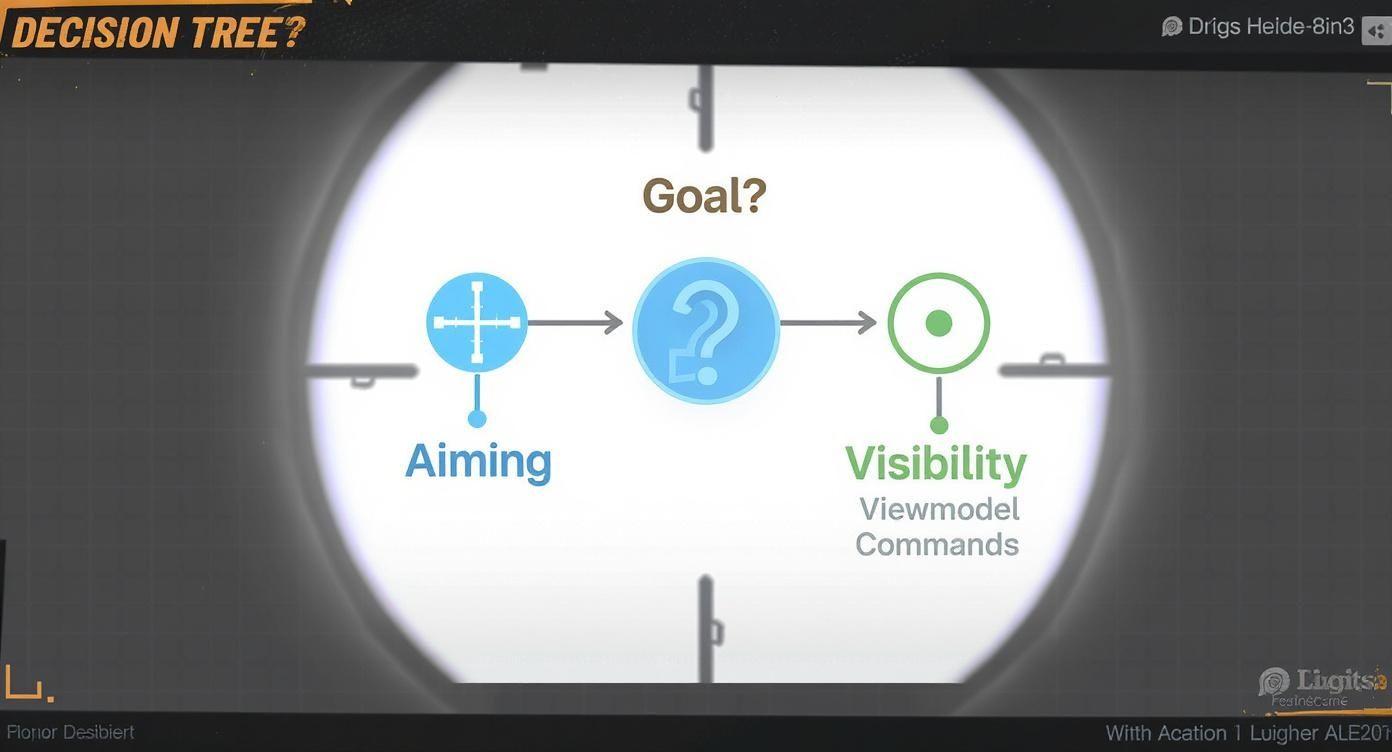
Optimizing aiming commands (e.g., crosshair) and visibility commands (e.g., viewmodel) are two distinct but equally key aspects of game personalization.
Monitoring Your Connection and Performance
The classic net_graph overlay was removed in CS2. Its replacement is the built-in telemetry HUD: enable it under Settings > Game to show FPS, ping and packet loss on screen, or enter cq_netgraph 1 in the console for a minimal connection readout.
Critical Tip: Monitor the "loss" and "choke" values. Loss indicates that data packets are being dropped. Choke signifies that the client is sending updates faster than the connection can support. If either value is consistently above zero, consider lowering the
ratesetting.
Configuring these network commands is standard practice in competitive play. Community-tracked data shows over 75% of competitive players set cl_cmdrate 128 and cl_updaterate 128 to match server tickrate. For additional command insights, read more at CS2 command insights on community.skin.club.
Audio and Communication Commands for Tactical Advantage
In Counter-Strike 2, audio is as critical as visuals. Clear, precise audio provides vital tactical information. Hearing a footstep, a grenade pin pull, or a distant reload reveals enemy positions and intent. Using CS2 console commands to configure audio provides a significant advantage over default settings.
A properly configured audio setup enables accurate sound pinpointing, which leads to faster reactions and better decision-making. These are the commands that provide complete control over the game's soundscape.
Managing In-Game and Voice Volume
Effective team play depends on clear communication, but balancing game audio with teammate callouts is often difficult. These commands create an optimal audio mix, ensuring key game sounds are not obscured by loud voice chat.
The master command for game audio is volume, which accepts a value from 0 (silent) to 1 (maximum). For instance, volume 0.5 sets the master volume to 50%.
For voice chat, voice_scale adjusts the volume of teammates' voices independently of game audio. Setting voice_scale 0.7 lowers incoming voice chat to 70% of its volume, which is ideal for high-pressure situations that require focus on in-game sounds.
Essential Communication Toggles
Effective communication discipline is critical. There are moments when game audio takes priority, and a quick method to mute voice chat is necessary.
voice_enable [0/1]: This is the clutch command.voice_enable 0instantly mutes all incoming voice chat, which is vital in 1vX situations where sound cues are essential. Set it back to1after the round.snd_voipvolume: This command controls the volume of your own microphone as heard by other players. It is useful for adjusting output if teammates report your volume is too high or low.
Pro Tip: While these commands manage technical audio settings, players can also personalize the game's soundscape. Explore the various CS2 music kits to customize in-game music and sound effects.
Optimizing sound with these commands provides a distinct competitive edge by ensuring all necessary information is heard without distraction.
Commands for Practice and Server Management
Improving at CS2 requires a private server for practicing grenade trajectories, spray patterns, and new angles. Offline servers offer complete control when used with the correct CS2 console commands. These commands transform a standard map into a personal training environment for unrestricted practice.
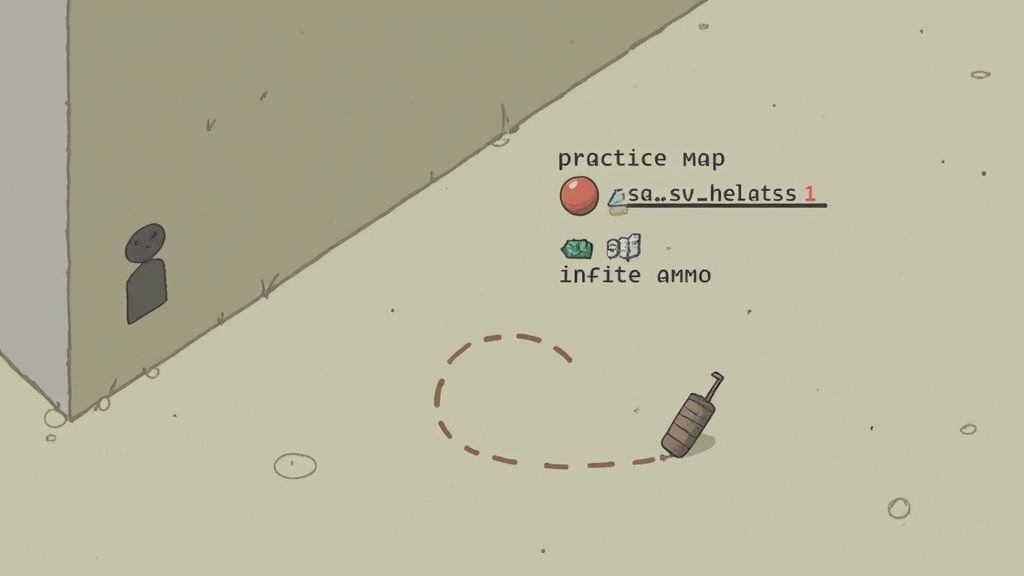
The first command required is sv_cheats 1. This command unlocks all other practice-oriented commands, allowing the user to modify the game's rules for training purposes.
Enabling Core Practice Commands
With sv_cheats enabled, the server can be customized. The objective is to remove the limitations of a standard match, such as finite ammunition or round timers, to focus entirely on mechanics.
These are the essential commands for a practice server:
sv_infinite_ammo 1: Provides unlimited ammunition and grenades. This is necessary for repeated grenade lineup and spray control practice.mp_roundtime_defuse 60: Increases the round timer to 60 minutes, preventing the round from ending during practice.mp_buy_anywhere 1: Allows access to the buy menu anywhere on the map.mp_buytime 60000: Extends the buy period, allowing for equipment purchases at any time.mp_restartgame 1: Restarts the game after 1 second to apply all new settings immediately.
Entering these commands establishes a sandbox environment for focused training.
Advanced Practice Tools and Bot Management
Several advanced commands can further enhance practice sessions. These commands enable grenade trajectory previews, flight, and bot control for aim drills.
A valuable tool in CS2 is sv_grenade_trajectory_prac_pipreview 1, which displays a small window showing the exact landing spot of a thrown grenade. This feature provides instant feedback for learning complex smoke and molotov lineups. For a complete list of commands, see these Counter-Strike codes.
Command Spotlight:
noclip
Thenoclipcommand enables flight and the ability to pass through solid objects. It is incredibly useful for map exploration. Bind it to a key for quick access, such asbind "v" noclip, to toggle flight mode instantly.
Managing bots is another key component of solo practice. Use these commands to add or control them:
bot_add: Spawns one bot on the opposing team.bot_kick: Removes all bots from the server.bot_stop 1: Freezes all bots in place, turning them into stationary targets for aim practice.
This command set provides everything needed to design custom training routines in a private server.
Spawning Weapons and Equipment
The give weapon_[name] command instantly provides any weapon, provided sv_cheats 1 is active. This is much faster than using the buy menu and is essential for cycling through different weapons during a warmup session.
Weapon Spawn Command Examples:
give weapon_ak47give weapon_m4a1_silencergive weapon_awpgive weapon_deaglegive weapon_hegrenade
Combining these weapon commands with infinite ammo and bot controls allows for the creation of highly efficient drills for any scenario.
Creating Advanced Binds, Aliases, and Config Files
Automating actions through the console is a standard practice for experienced CS2 players. Using binds, aliases, and a custom configuration file allows for the execution of complex command sequences with a single keypress. This ensures the game is configured identically every time it is launched.
The bind command is the foundation. It assigns a console command to a keyboard or mouse key using the syntax bind "[key]" "[command]". This is ideal for frequently used actions, eliminating the need to use menus or default keys during gameplay.
A common example is a quick-switch bind. bind "q" "slot3; slot1" instantly switches to the knife and back to the primary weapon, a technique frequently used by AWP players.
Building Complex Actions with Aliases
An alias is a custom command that executes multiple other commands sequentially. It functions as an in-game macro. The syntax is alias "[new_command_name]" "[command1; command2; command3]".
The most well-known alias is the "jump-throw" bind. In CS:GO it was essential for perfectly repeatable grenade timing. CS2's sub-tick input has made manual jump-throws consistent, so the bind is now a comfort option rather than a necessity, and multi-action binds are restricted on official matchmaking servers.
Example Jump-Throw Alias:
alias "+jumpthrow" "+jump; -attack; -attack2"alias "-jumpthrow" "-jump"bind "mouse5" "+jumpthrow"
This script executes the jump and grenade release simultaneously when mouse5 is held down. Releasing the key completes the action.
Using an Autoexec File for Permanent Settings
To ensure custom binds and aliases are permanent, use an autoexec.cfg file. This file functions as a startup script for CS2, automatically executing every command within it upon launch.
To set it up:
- Locate the CS2 config folder, typically at
...\Steam\steamapps\common\Counter-Strike Global Offensive\game\csgo\cfg. - Create a new text file and rename it to
autoexec.cfg. Ensure the file extension is.cfg, not.txt. - Open the file with a text editor and add commands, with each command on a new line.
- Add
host_writeconfigas the final line in the file to ensure all settings are saved correctly. - In Steam, right-click on CS2, select "Properties," and add
+exec autoexec.cfgto the launch options.
This one-time setup ensures all personal configurations are loaded automatically every time the game starts.
Example Binds and Aliases for Efficiency
| Action | Bind/Alias Command Example | Description |
|---|---|---|
| Jump-Throw | alias "+jt" "+jump;-attack"; alias "-jt" "-jump"; bind "n" "+jt" |
A perfectly timed jump-throw bind on the "N" key. A must-have for utility. |
| Quick Switch | bind "q" "use weapon_knife; slot1" |
Binds "Q" to quickly switch to your knife and back to your primary weapon. |
| Mute All Voice | bind "F3" "toggle voice_enable 0 1" |
A simple toggle on "F3" to mute or unmute all in-game voice chat instantly. |
These tools enable the creation of a highly personalized and efficient control scheme that provides a competitive advantage.
Browse our list of the best CS2 trading sites to find safe and verified platforms.
Frequently Asked Questions About CS2 Console Commands
This section addresses the most common questions players have about using the console in CS2.
Can Using CS2 Console Commands Get Me VAC Banned?
No, using standard console commands will not result in a VAC ban. Customizing a crosshair, adjusting the framerate cap, or modifying network rates are intended game functions. The sv_cheats 1 command is restricted to private servers and cannot be activated on VAC-secured servers, eliminating any risk of an accidental ban. VAC bans are issued for using third-party software to gain an unfair advantage.
What Is an Autoexec.cfg and Why Should I Use One?
An autoexec.cfg is a personal configuration file that automatically executes a list of commands every time CS2 is launched. Its primary benefit is consistency, as it instantly applies all custom keybinds, crosshair settings, and performance tweaks without manual input. It also acts as a reliable backup for a player's entire configuration.
How Do I Find the Best Network Settings for CS2?
Optimal network settings depend on the internet connection and server tickrate. For most broadband connections, setting rate to 786432 is recommended. The In CS2, the old cl_updaterate/cl_cmdrate tuning no longer applies: sub-tick networking manages update rates automatically. Use the telemetry HUD (Settings > Game) or cq_netgraph 1 to monitor connection quality, and investigate your network if packet loss persists.
What Happened to Commands Like cl_bob or cl_righthand?
Many commands from CS:GO, including cl_righthand and the cl_bob family, were removed in Counter-Strike 2. With the transition to the Source 2 engine, Valve streamlined the command list to build a more standardized competitive environment. Some functions were integrated into the in-game settings menu, while others were removed entirely to ensure a level playing field.
Track the best prices and find deals across dozens of marketplaces automatically. Set up the CS2WH.COM CS2 deals bot to get instant price alerts and build your inventory smarter.