In Counter-Strike 2, default viewmodel settings are rarely optimal for competitive performance. The placement of your weapon on screen directly impacts visibility, and the default configuration often obscures key sightlines. Adjusting the weapon's position, field of view, and movement animations through specific console commands significantly reduces screen clutter and improves target acquisition. This customization is a standard practice among professional and high-ranking players to gain a visual advantage.
Below are the eight most effective CS2 viewmodel commands. You will learn the exact syntax, default values, and recommended settings to tailor your in-game perspective. Mastering these settings allows for a customized visual experience suited to your playstyle, monitor size, and resolution. A properly configured viewmodel minimizes distractions, maximizes screen real estate for spotting enemies, and can lead to more consistent aim.
Every command below is entered in the developer console. If you have not enabled it yet, our CS2 console commands guide covers turning it on and the settings worth changing first. Valve documents the console itself in the Valve Developer Community reference. It also the official Counter-Strike update notes are the place to confirm whether a command survived a patch.
Each entry breaks down a command's function, its value range, and its direct impact on gameplay. This article covers how to adjust your weapon’s horizontal, vertical, and depth positioning, change your field of view. It also modify weapon movement animations like bobbing. The goal is to provide practical configurations that you can implement immediately to create a cleaner, more efficient heads-up display. These adjustments are functional optimizations for competitive play.
1. viewmodel_fov – Field of View Adjustment
The viewmodel_fov command directly controls the field of view of your weapon and hands. It dictates how "zoomed in" or "zoomed out" your in-hand model appears, which alters your on-screen perspective. A lower value brings the weapon closer, filling more of the screen. Meanwhile, a higher value pushes it further away, revealing more of the weapon model and clearing peripheral vision.
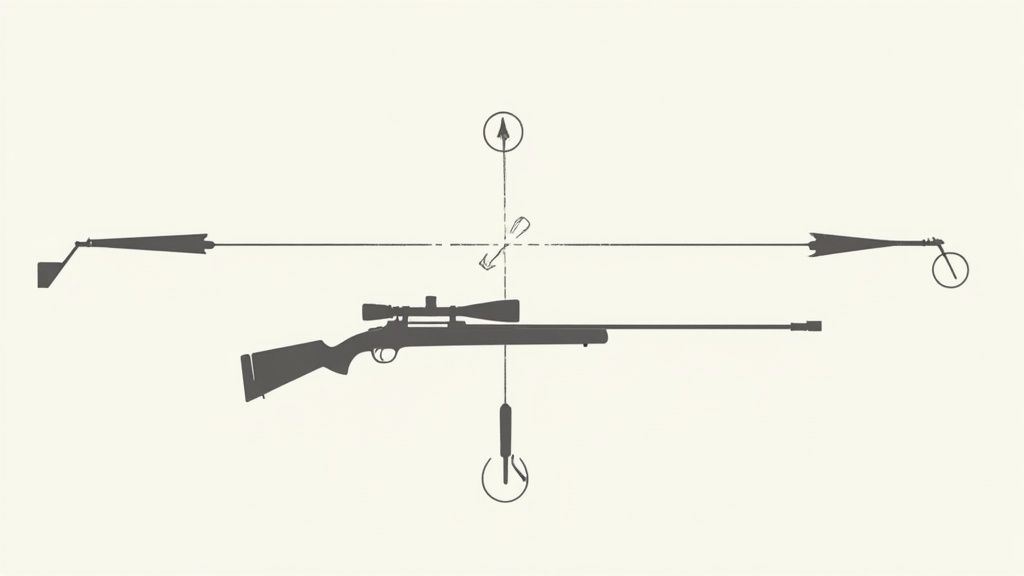
This command is fundamental for personalizing your interface. The allowed range is between 54 (closest) and 68 (farthest). Finding the right balance is key; a viewmodel that is too large can obscure enemies. Meanwhile, one that feels too distant can be distracting for some players. Professional players often fine-tune this setting to match their playstyle and resolution.
How It Works & Recommended Settings
The command accepts a numerical value corresponding to the field of view angle for the viewmodel. It does not affect the world FOV, only the weapon model in your hands.
- Syntax:
viewmodel_fov [value] - Default Value:
60 - Range:
54to68
Here are three common starting points:
viewmodel_fov 68: Maximum FOV. This is a popular competitive setting that pushes the weapon as far away as possible. It maximizes screen real estate, making it easier to spot enemies.viewmodel_fov 60: Balanced View. This default setting offers a solid middle ground. It provides a clear view of the weapon without it feeling overly intrusive or distant.viewmodel_fov 54: Minimum FOV. This setting brings the weapon very close to the screen. Some players prefer the larger, more detailed weapon model, particularly for aiming down sights.
Pro Tip: To ensure your
viewmodel_fovsetting persists across game sessions, add it to yourautoexec.cfgfile. Add a line likeviewmodel_fov 65to the file, and it will apply automatically every time you launch CS2. The ability to customize this is one of many advantages of using the developer console, a topic explored in our guide to CS2 console commands.
2. viewmodel_offset_x – Horizontal Weapon Position
The viewmodel_offset_x command adjusts the horizontal placement of your weapon model, moving it left or right across the screen. This setting is critical for players who feel their weapon obstructs their central line of sight. By shifting the viewmodel, you can clear the middle of your screen, making it easier to spot and track targets without your own weapon getting in the way.
This command is a matter of personal preference, with some players preferring a centered weapon and others pushing it far to the side. The allowed range is from -2.5 (far left) to 2.5 (far right). Fine-tuning this position helps create an unobtrusive layout, allowing you to concentrate fully on crosshair placement and enemy movements. Shifting weapon models is a key part of personalizing your interface, similar to how players can customize their CS2 player appearance.
How It Works & Recommended Settings
This command accepts a numerical value that shifts the viewmodel along the X-axis. Positive values move the weapon to the right, while negative values move it to the left. It works in tandem with the Y and Z offsets for complete positional control.
- Syntax:
viewmodel_offset_x [value] - Default Value:
1 - Range:
-2.5to2.5
Here are three common starting points:
viewmodel_offset_x 2.5: Maximum Right. Pushes the weapon model as far to the right as possible. This is a popular competitive setting for players who want a clear view of the center screen.viewmodel_offset_x 0: Centered View. This setting perfectly centers the weapon model horizontally. It provides a symmetrical view, which some players find less distracting.viewmodel_offset_x -2.5: Maximum Left. This is the counterpart to the maximum right setting, moving the weapon all the way to the left. This is often used by left-handed players or those who want to clear the right side of their screen.
Pro Tip: Many professional players use a value between
1.5and2.5to gain a slight visual advantage. Combineviewmodel_offset_xwithviewmodel_offset_yandviewmodel_offset_zto achieve your ideal custom position. Test your settings in a deathmatch to see how they feel during active gameplay.
3. viewmodel_offset_y – Vertical Weapon Position
The viewmodel_offset_y command adjusts the vertical position of your weapon model, moving it up or down on the screen. This setting allows players to fine-tune how high or low their gun sits relative to their crosshair. A lower value pushes the weapon down, clearing up the center of your screen. Meanwhile, a higher value raises it for a more traditional first-person shooter feel.
This command is favored among competitive players for its ability to create a less obstructed view. By lowering the weapon model, you gain a clearer sightline of the area around your crosshair, potentially spotting enemies' feet or lower bodies more easily. The allowed range is between -2 (lowest) and 2 (highest), offering precise control over the Y-axis placement.
How It Works & Recommended Settings
The command uses a numerical value to determine the weapon model's vertical offset. Positive values move it up, and negative values move it down. It is often used in conjunction with other offset commands to achieve a custom layout.
- Syntax:
viewmodel_offset_y [value] - Default Value:
0 - Range:
-2to2
Here are three common starting points:
viewmodel_offset_y 2: Highest Position. This raises the weapon to its maximum height, mimicking the feel of some classic arena shooters. It can cover more of the upper screen.viewmodel_offset_y 0: Default Center. This is the standard, balanced position. It's a neutral setting that works well for most players without a specific preference.viewmodel_offset_y -2: Lowest Position. This highly popular competitive setting pushes the weapon model as far down as possible. It significantly clears the center of the screen, which is vital for holding tight angles.
Pro Tip: Many high-sensitivity players prefer lower
Yvalues (like-1.5or-2) because it reduces on-screen clutter during fast mouse movements. Combineviewmodel_offset_y -2,viewmodel_offset_x -2, andviewmodel_offset_z -2for a common "bottom-left" corner viewmodel that maximizes central visibility.
4. viewmodel_offset_z – Depth Weapon Position
The viewmodel_offset_z command is another key component in the trio of positional CS2 viewmodel commands. It controls the depth of your weapon model, adjusting how far forward or backward it sits relative to your camera. A higher value pushes the weapon forward, making it appear smaller. Meanwhile, a lower value pulls it back, making it seem larger and closer.
This command directly impacts how much of your screen the weapon occupies along its depth axis. Fine-tuning the Z-axis is essential for creating a viewmodel that feels natural and unobtrusive. Players often adjust this setting to prevent the weapon model from blocking their view, especially in close-quarters combat where every pixel of visibility matters.
How It Works & Recommended Settings
This command takes a numerical input to define the weapon's position on the Z-axis. It works in tandem with viewmodel_offset_x and viewmodel_offset_y to achieve a complete positional setup.
- Syntax:
viewmodel_offset_z [value] - Default Value:
0 - Range:
-2to2
Here are three common configurations to start with:
viewmodel_offset_z -1.5: Pulled Back. A common competitive setting. This pulls the weapon model back, which, when combined with a high FOV, can make the gun feel smaller and less intrusive.viewmodel_offset_z 0: Default Depth. This is the standard, centered depth position. It offers a balanced perspective that works well for most players without a specific preference.viewmodel_offset_z 2: Pushed Forward. This setting pushes the weapon model as far forward as possible. While less common, some players prefer this to create a sense of distance from their weapon.
Pro Tip: The
viewmodel_offset_zcommand is most effective when balanced withviewmodel_fov. A high FOV paired with a negative Z-offset is a popular combination for a minimal viewmodel. Experiment by adjusting both settings simultaneously in an offline server to find the perfect configuration for your resolution and playstyle.
5. viewmodel_preprocess_batch – Animation Performance Optimization
The viewmodel_preprocess_batch command is a technical setting that impacts how CS2 handles and processes viewmodel animations. It controls whether these animation calculations are batched together to optimize CPU usage. While less about visual customization and more about performance, this is a critical command for players looking to stabilize their frame rates on mid-range or CPU-bound systems.
This setting addresses the computational load of rendering weapon animations like reloading, switching, and inspecting. Enabling batching can lead to smoother performance by reducing the number of individual processing calls, preventing micro-stutters during intense action. Disabling it may offer the lowest latency for animations but at a potential performance cost.
How It Works & Recommended Settings
This command functions as an on/off switch, accepting a boolean value (1 for on, 0 for off). It tells the game engine whether to group viewmodel animation updates into a single batch per frame or process them individually.
- Syntax:
viewmodel_preprocess_batch [0 or 1] - Default Value:
1 - Range:
0(Off),1(On)
Here are the two settings and their primary use cases:
viewmodel_preprocess_batch 1: Enable Batching (Recommended). This is the default setting and is advised for the vast majority of players. It optimizes CPU workload, leading to more stable frame rates.viewmodel_preprocess_batch 0: Disable Batching. This setting processes animations with the lowest possible latency. High-end systems with powerful CPUs may not see a performance drop, but for most users, this can introduce unnecessary performance overhead.
Pro Tip: If you experience frame drops specifically when switching weapons or during reload animations, ensure this command is set to
1. Test both0and1in a private server while performing rapid weapon actions to see if there is a noticeable impact on your FPS counter.
6. cl_righthand – Weapon Hand Orientation
The cl_righthand command is a toggle that switches your weapon and viewmodel between your right and left hand. While seemingly cosmetic, this command impacts visual comfort and sightlines. Switching to a left-hand model can clear up visibility on the right side of your screen. That can be advantageous when holding specific angles or peeking corners.
This command is entirely a matter of personal preference, with no inherent competitive advantage to either setting. Some players who are left-eye dominant report feeling more comfortable with a left-hand viewmodel. Others prefer the aesthetic or the change in on-screen balance. It is a fundamental CS2 viewmodel command for tailoring the game to your visual needs.
How It Works & Recommended Settings
The command functions as a binary toggle, accepting either a 1 for the default right-hand orientation or a 0 for the left-hand orientation.
- Syntax:
cl_righthand [0 or 1] - Default Value:
1(Right-hand) - Range:
0(Left-hand) or1(Right-hand)
Here are the two options:
cl_righthand 1: Right-Hand View. This is the default setting for CS2 and what the vast majority of players are accustomed to. It places the weapon on the right side of the screen.cl_righthand 0: Left-Hand View. This setting mirrors the viewmodel, placing the weapon on the left side. It is a popular alternative for players looking to free up visual space on the right.
Pro Tip: Many advanced players create a keybind to toggle their weapon hand on the fly. You can achieve this by adding the following line to your
autoexec.cfg:bind "KEY" "toggle cl_righthand 0 1". Replace"KEY"with your desired key. Discover more advanced options by exploring various Counter-Strike codes for personalized scripts.
7. viewmodel_bobbing_low – Reduced Weapon Bobbing Animation
The viewmodel_bobbing_low command minimizes the weapon model's sway and bob while moving. When you run or strafe, the default animation causes your weapon to move up, down, and side-to-side. This command drastically reduces that motion, creating a more stable and static viewmodel that helps maintain focus on your crosshair and the environment.
This setting is nearly universally adopted in the professional scene because it eliminates unnecessary visual noise. By stabilizing the viewmodel, players can better track targets without the interference of a constantly shifting weapon model. It is also beneficial for players who are sensitive to motion sickness, as it provides a smoother visual experience.
How It Works & Recommended Settings
This command functions as a simple toggle, accepting a boolean value (1 for on, 0 for off) to control the weapon's animation profile during movement. Enabling it switches to a minimal bobbing animation.
- Syntax:
viewmodel_bobbing_low [value] - Default Value:
0 - Range:
0or1
Here are the two options and their effects:
viewmodel_bobbing_low 1: Minimal Bobbing (Recommended). This setting enables the reduced bobbing animation. Your weapon will remain significantly more stable during movement, which is the standard for competitive configurations.viewmodel_bobbing_low 0: Full Bobbing (Default). This setting uses the standard, more pronounced weapon bob animation. It is widely considered a competitive disadvantage due to the added visual distraction.
Pro Tip: For a stable viewmodel, pair this command with other bob-related settings. Add
cl_bob_lower_amt 5,cl_bobamt_lat 0.1, andcl_bobamt_vert 0.1to yourautoexec.cfgalong withviewmodel_bobbing_low 1to achieve the most minimal weapon movement possible in CS2.
8. cl_viewmodel_shift_left_amt – Left-Hand Animation Adjustment
For players who use a left-handed viewmodel (cl_righthand 0), the cl_viewmodel_shift_left_amt command offers a subtle layer of customization. This command controls how much the weapon model moves horizontally when you switch to your left hand. It affects the animation and final resting position, allowing you to fine-tune the visual transition and comfort of the left-handed perspective.
This setting is cosmetic but can impact how natural the viewmodel feels. A higher value creates a more pronounced shift, while a lower value results in a minimal, more centered animation. Properly configuring this is key to creating a balanced and unobtrusive left-handed setup, ensuring the model does not feel awkward or distracting.
How It Works & Recommended Settings
This command only has a visible effect when cl_righthand 0 is active. It accepts a decimal value that dictates the magnitude of the horizontal shift for the left-handed model.
- Syntax:
cl_viewmodel_shift_left_amt [value] - Default Value:
1.5 - Range:
0.5to2.5
Here are a few settings to experiment with for your left-handed configuration:
cl_viewmodel_shift_left_amt 2.5: Maximum Shift. This pushes the weapon model as far as it can go during the left-hand animation. Some players find this helps clear the center of the screen.cl_viewmodel_shift_left_amt 1.5: Default Shift. This is the standard setting, providing a balanced and moderate animation that works well for most players.cl_viewmodel_shift_left_amt 0.5: Minimum Shift. This setting creates the most subtle animation possible, keeping the weapon model closer to its default anchor point. It is ideal for players who want minimal viewmodel movement.
Pro Tip: Since this command is only useful for left-handed viewmodels, consider binding it alongside your hand-swap key. For example:
bind "L" "toggle cl_righthand 0 1; cl_viewmodel_shift_left_amt 1.0". This ensures your preferred shift amount is applied whenever you switch hands, making it a smooth part of your personalized CS2 viewmodel commands.
CS2 Viewmodel Commands: 8-Point Comparison
| Command | 🔄 Implementation complexity | ⚡ Resource requirements | 📊 Expected outcomes | 💡 Ideal use cases | ⭐ Key advantages |
|---|---|---|---|---|---|
| viewmodel_fov – Field of View Adjustment | Low, single numeric value change | Low, client-side setting only | Changes perceived weapon size and peripheral view; affects crosshair relation | Competitive tuning; reduce motion sickness; visual preference | ⭐⭐:Better visibility and comfort |
| viewmodel_offset_x – Horizontal Weapon Position | Low, simple offset tweak | Low, negligible system impact | Moves weapon left/right, reducing center obstruction | Fine-tune for monitor/setup or to clear crosshair area | ⭐⭐:Improves center visibility |
| viewmodel_offset_y – Vertical Weapon Position | Low, simple offset tweak | Low, negligible system impact | Raises/lowers weapon relative to screen center | Adjust for monitor height, reduce visual clutter near crosshair | ⭐⭐:Optimizes aim area visibility |
| viewmodel_offset_z – Depth Weapon Position | Low, simple offset tweak | Low, negligible system impact | Pushes/pulls weapon forward/back, changing perceived distance | Balance weapon obtrusiveness vs world visibility; competitive setups | ⭐⭐:Reduces obtrusion, improves world visibility |
| viewmodel_preprocess_batch – Animation Performance Optimization | Medium, toggle plus validation/testing | Low overhead to enable; reduces CPU per-frame load | Smoother frame-rate and animation stability on mid/low CPUs | Enable on mid-range or laptop systems to improve FPS stability | ⭐⭐:Stabilizes CPU load and animations |
| cl_righthand – Weapon Hand Orientation | Low, binary toggle (0/1) | Low, client-side only | Switches left/right hand orientation; affects visual layout | Left-handed players or to clear specific screen sides | ⭐⭐:Improves comfort and sightlines for preference |
| viewmodel_bobbing_low – Reduced Weapon Bobbing Animation | Low, boolean toggle | Low, client-side flag | Minimizes viewmodel sway; steadier aim view | Competitive play and motion-sickness reduction | ⭐⭐⭐: Strongly improves focus and reduces motion sickness |
| cl_viewmodel_shift_left_amt – Left-Hand Animation Adjustment | Low, decimal adjustment | Low, negligible system impact | Fine-tunes left-hand switch animation magnitude | Only when using left-hand viewmodel for smoother transitions | ⭐, Cosmetic smoothing for left-hand users |
Checking These Commands Still Work
Counter-Strike 2 has removed console commands that worked for years in CS:GO. The old net_graph overlay and r_cleardecals are both gone, and guides across the community still list them. Before you build a config around any command, it pays to check that it survived the latest patch.
Three checks cover it. Type the command into the console: if it does not autocomplete, it no longer exists. Compare against Valve's official update notes, which record removals as they ship. For a fuller reference, the Valve Developer Community cvar list documents what each setting does.
Community config repositories and pro player settings pages are useful for values, but treat them as a starting point rather than a source of truth. They go stale quickly after a major patch, and a config that silently fails is easy to miss mid-match.
Integrating Viewmodel Commands Into Your Configuration
Mastering the set of CS2 viewmodel commands is a critical step in tailoring the game to your competitive needs. The commands detailed in this guide, from viewmodel_fov to viewmodel_offset_x, _y, and _z, are not merely cosmetic adjustments. They are functional tools that directly influence your visual clarity, screen real estate, and focus during high-stakes engagements. A well-configured viewmodel reduces on-screen clutter and minimizes distracting weapon animations.
The most effective approach is to build a personalized configuration that feels both comfortable and advantageous. While copying settings from professional players can provide a solid baseline, true optimization comes from experimentation. Incremental changes to the X, Y, and Z offsets allow you to find the precise balance between weapon visibility and a clear field of view. A player who frequently holds tight angles may prefer a more compact viewmodel to maximize peripheral vision.
Key Takeaways for Viewmodel Optimization
-
Consistency is Paramount: The single most important action you can take is to save your final settings in an
autoexec.cfgfile. This ensures your custom viewmodel loads automatically every time you start CS2, preventing the need to re-enter commands and guaranteeing a consistent visual experience across all matches. -
Performance and Visuals: Commands like
viewmodel_bobbing_lowandcl_viewmodel_shift_left_amtdirectly impact the amount of on-screen motion. Disabling or minimizing these effects creates a more stable sight picture. That can make tracking moving targets and controlling recoil spray patterns feel more consistent. This reduction in visual noise is a common practice among high-level players. -
Function Over Form: While aesthetics play a role, your primary goal should be functional improvement. Ask whether the viewmodel obstructs your view of common angles. Ask whether the weapon model distracts you during firefights. Answering these questions will guide you toward a configuration that enhances your gameplay rather than just changing the look of your screen.
Ultimately, these CS2 viewmodel commands are about removing variables and creating a controlled, predictable environment. You have complete control over how your weapon appears, and using that control is a significant advantage. By systematically testing and implementing these commands, you build a foundation of visual consistency that supports better aim, faster reactions, and improved situational awareness. The perfect viewmodel is the one that lets you forget it’s even there.
While optimizing your in-game view is key for performance, managing your inventory's value is just as important for your out-of-game strategy. For complete tools, real-time market data, and a secure environment to manage your skins, explore the resources available at CS2WH.COM. Visit CS2WH.COM to access a full suite of services designed for serious players and traders.
Once your viewmodel feels right, the same console handles crosshair and HUD tuning. Pair these settings with the practice commands in our Counter-Strike codes guide. It also if you are rebuilding your loadout at the same time, our MP9 skin picks and the CS2 case calculator are a good next stop.